This post contains affiliate links — I may earn a commission at no cost to you.
Guide
Optimize Mac for Cloud Gaming: Controller & Network Guide
Learn how to disable AirPlay, Handoff, and Location Services to improve your DualSense Edge performance on Mac cloud gaming platforms.
Optimize My Edge →Free · No install · Works in Chrome
How it works
01
Disable AirPlay Receiver
System Settings → General → AirDrop & Handoff → turn off AirPlay Receiver. This frees up network resources.
02
Turn off Handoff
Same menu — disable Handoff. It creates constant Bluetooth chatter that can interfere with your controller.
03
Disable Location Services for apps
System Settings → Privacy & Security → Location Services. Turn off for any apps that don't need it while gaming.
04
Configure your Edge controller
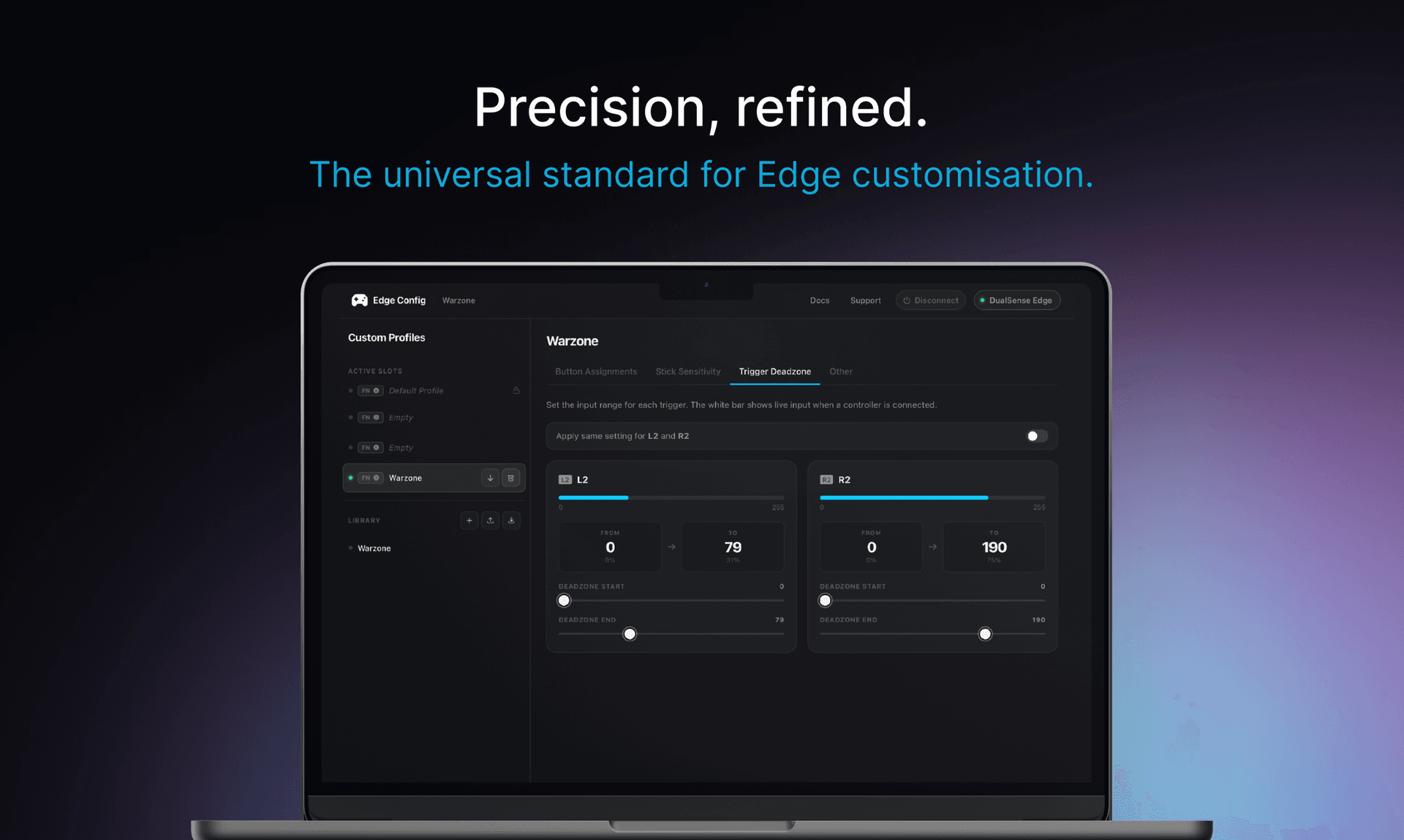
Connect via USB-C and open Edge Config in Chrome. Apply your preferred settings and sync to hardware.
Topics
mac gaming latencydisable airplay for gamingmac bluetooth controller lagoptimize macbook for cloud gaming
Fix it in 60 seconds
Connect your controller, open the app, done. Free — no install required.
As an Amazon Associate, I earn from qualifying purchases.