Guide
Remap DualSense Edge Back Buttons on Windows 11
Unlock the full potential of your rear paddles. Assign any button or stick click to your paddles and save them to your profile without a PlayStation.
Remap My Paddles →Free · No install · Works in Chrome
How it works
01
Connect via USB on Windows 11
Plug your Edge controller into any USB port. Open Edge Config in Chrome — no drivers or installs required.
02
Go to Button Assignment
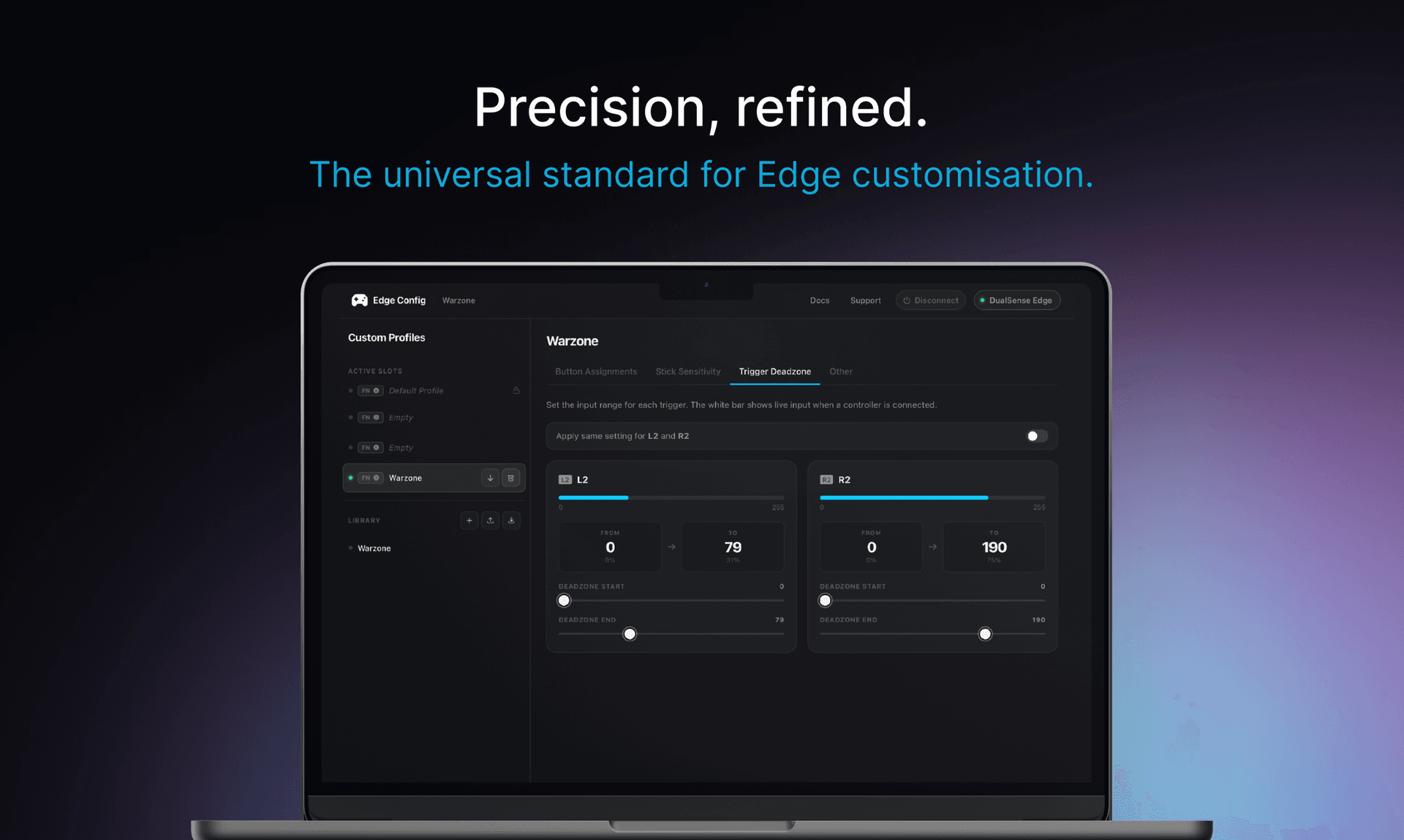
Select your profile slot and open the Button Assignment tab. You'll see all 16 buttons including Left and Right Paddle.
03
Remap your paddles
Click a paddle chip and select any button from the list — L3, R3, square, triangle, or any face/shoulder button.
04
Sync to hardware
Hit Sync. Paddle mappings are saved to your controller's memory and work in every game, no software running.
Topics
remap paddles pcwindows 11 back buttonsrear paddle setupdualsense edge mapping
Fix it in 60 seconds
Connect your controller, open the app, done. Free — no install required.