This post contains affiliate links — I may earn a commission at no cost to you.
Guide
Remap PS5 Edge Paddles on Mac (No Console Required)
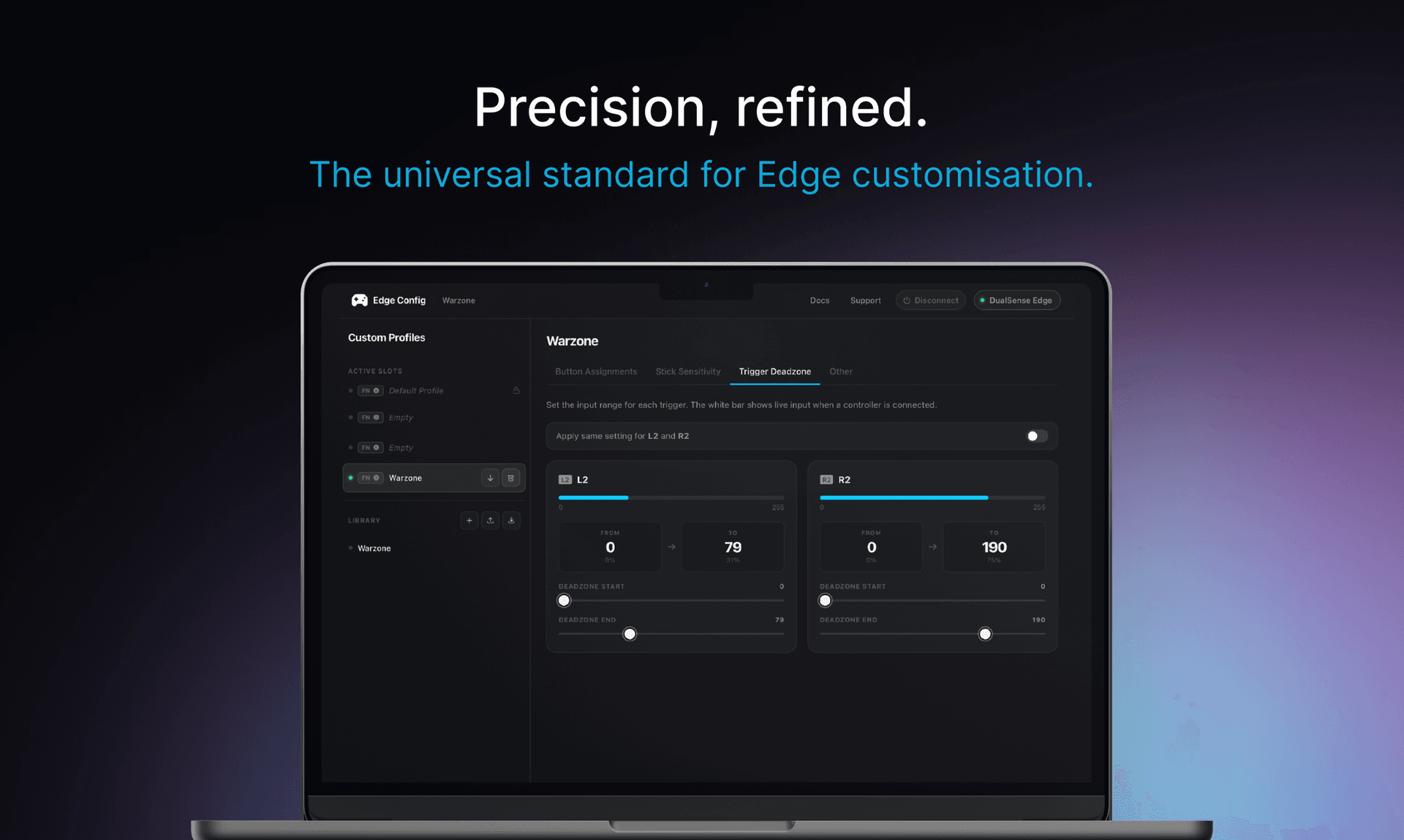
Don't have a PS5? You can still customize your DualSense Edge on Mac. Use our web tool to map back paddles and save profiles directly to your hardware.
Remap Without a PS5 →Free · No install · Works in Chrome
How it works
01
No PS5 needed
Edge Config runs entirely in your browser. Plug your controller into your Mac via USB-C and open the app in Chrome.
02
Read your profiles
Click Connect. The app reads all 4 profile slots directly from your controller hardware over USB.
03
Remap your back paddles
Open Button Assignment, click Left or Right Paddle, and assign any button you want. Changes are shown live.
04
Write to hardware
Hit Sync. Your paddle remaps are saved to the controller's onboard memory — permanent until you change them.
Topics
remap dualsense edge macbookconfigure edge controller macps5 controller mac appcustomize back buttons mac
Fix it in 60 seconds
Connect your controller, open the app, done. Free — no install required.
As an Amazon Associate, I earn from qualifying purchases.